- All proxies are mobile, clean, anonymous, and highly trustworthy.
- Mobile proxies can be used in any software; below you'll find the most popular ones.












How to Use MCP in Cursor: Add and Connect MCP Servers
- Seo Za
- 12 minutes
MCP in Cursor uses the Model Context Protocol to connect external tools and data sources. It stops you from re-explaining project context in every prompt. This is how to use MCP in Cursor: an MCP server exposes those details, and the agent queries them directly. For example, instead of copying ticket text into chat, an issue-tracker integration can fetch the ticket itself.
It can be any language that prints to stdout or serves an HTTP endpoint.
Transport | Where it runs | Who it serves | Authentication | Best for |
|---|---|---|---|---|
stdio | Local process | One user | Environment variables | Personal tools |
SSE | Remote endpoint | Shared users | Headers or OAuth | Hosted services |
Streamable HTTP | Remote endpoint | Shared users | Headers or OAuth | Hosted services |
Choose stdio for a local personal tool, sacrificing shared access for simplicity. Choose Streamable HTTP or SSE for a hosted service, accepting auth and hosting overhead.
Capabilities include Tools, Prompts, Resources, Roots, Elicitation, and MCP Apps. Before starting, install Cursor. For local servers, put commands like npx, node, python, or docker on your system path.
How to Add MCP to Cursor
Add MCP to Cursor in one of two ways.
- One-click: install official plugins from the Cursor Marketplace on the Customize page.
- Manual: define the server in
mcp.jsonfor custom, internal, or community servers.
An Extension API supports automated registration.
Option 1: Install an MCP Server in One Click
To add MCP to Cursor with one click, use the built-in installer. It writes the connection settings for you and avoids manual file edits. This route works best when a ready-made plugin already exists.
Official releases appear in the Cursor Marketplace. Community builds are listed on cursor.directory.
- Open Customize from the sidebar.
- Find the integration you need.
- Click Add to Cursor.
- Complete OAuth sign-in if prompted.
- Confirm the new item is enabled, then use its toggle to disable it later without removing the setup.
For example, install the official Linear plugin. The editor opens the sign-in page, requests workspace access, and places the integration into Customize.
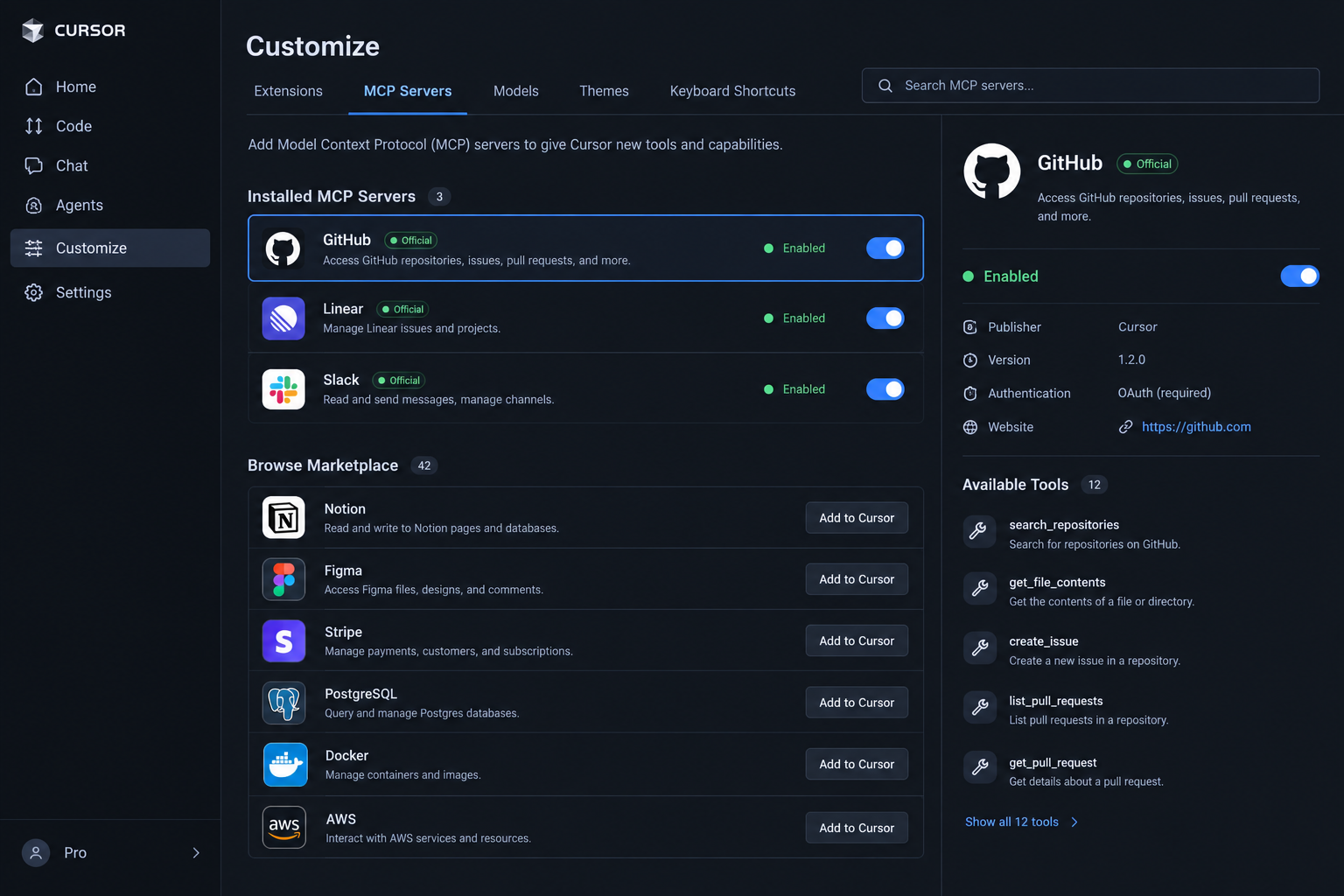
You can then switch it off when you do not need it. Team admins can also publish approved plugins through a shared team marketplace, so colleagues see them in the same place.
Option 2: Connect an MCP Server to Cursor via mcp.json
Use this option when you need to connect MCP server to Cursor manually. Custom entries live under the mcpServers object in the mcp.json file. Each key names one server. Keep secret values in environment variables, never in the repository.
{
  "mcpServers": {
    "google-maps": {
      "type": "stdio",
      "command": "npx",
      "args": [
        "-y",
        "@modelcontextprotocol/server-google-maps"
      ],
      "env": {
        "GOOGLE_MAPS_API_KEY": "AIzaSyD-ваш-реальный-ключ-инфо"
      }
    }
  }
}
Python STDIO server
{
  "mcpServers": {
    "your-python-server": {
      "type": "stdio",
      "command": "python",
      "args": [
        "path/to/your_server.py"
      ],
      "env": {
        "API_KEY": "YOUR_API_KEY"
      }
    }
  }
}
Remote HTTP or SSE server
{
"mcpServers": {
"your-remote-server": {
"url": "https://your-mcp-endpoint.example/mcp",
"headers": {
"Authorization": "Bearer YOUR_TOKEN"
}
}
}
}
These snippets are starting points, not installable packages. Replace the server name, command, arguments, and credential placeholders with values from the server documentation. Node.js servers often run through npx. Python servers may call python or python3 directly. Remote servers do not use command or args. They contact an HTTP or SSE endpoint and send authentication through headers.
If a local tool needs an API key, place it in the env block. Do not hardcode tokens in shared mcp.json files. A checked-in key can be reused by anyone who reads the repository. Prefer an environment variable on each machine. For remote endpoints, use interpolation so secrets stay outside the file.
For CLI servers, Cursor launches the process. The command field names the executable. The args field passes arguments. The env block supplies variables. For hosted endpoints, use the url field and optional headers. For STDIO entries, type and command are required. The args, env, and envFile fields are optional.
Field | Required | What it does | Example |
|---|---|---|---|
type | Yes | Selects the local process transport. | "stdio" |
command | Yes | Starts the executable. | "npx" or full path |
args | No | Passes CLI arguments. | ["-y", "your-server-name"] |
env | No | Sets environment variables. | {"API_KEY": "YOUR_API_KEY"} |
envFile | No | Loads variables from a file. | ".env.local" |
Put the binary on your system path, or provide a full path. The envFile option works only for STDIO servers. Remote servers should use config interpolation for credentials. Save mcp.json, then confirm the server is enabled and its tools appear.
Where to Save mcp.json: Project vs Global
Cursor reads mcp.json from two places. If a server depends on this repository, use project configuration. Put those entries in .cursor/mcp.json so teammates can share them. For a personal utility, use global configuration in ~/.cursor/mcp.json.
Scope | Path | Use it for |
|---|---|---|
Project | .cursor/mcp.json | Tools tied to one repository, shared through version control |
Global | ~/.cursor/mcp.json | Personal tools available in every project |
Example: a database server for this repo belongs in the project file. A general web-docs lookup server belongs in the global file. Never commit tokens, API keys, or secrets in either file.
Keep Secrets Out of mcp.json with Config Interpolation
Use config interpolation to keep an MCP server configuration safe. Cursor expands variables in command, args, env, url, and headers before it launches or connects. Put secrets in your shell or OS environment, not in the file. This keeps tokens out of Git history and shared repos.
${env:NAME}— reads the named environment variable.${userHome}— points to your home directory.${workspaceFolder}— points to the current project root.${workspaceFolderBasename}— gives the open folder’s base name.${pathSeparator}— matches the OS path separator.
{
  "args": [
    "${workspaceFolder}/schema.sql"
  ],
  "env": {
    "API_KEY": "${env:API_KEY}"
  }
}
{
  "headers": {
    "Authorization": "Bearer ${env:MY_SERVICE_TOKEN}"
  }
}
For a local tool, pass the project path and key through variables. For a remote endpoint, use the Authorization header pattern above. The token stays outside version control.
Connect a Remote MCP Server That Uses OAuth
Most remote servers complete OAuth 2.0 automatically through Dynamic Client Registration. Some providers, such as Figma or Linear, lack it, require static credentials, or require a whitelisted redirect URL. To connect MCP server to Cursor, add an auth object to mcp.json. If scopes are omitted, Cursor reads scopes_supported from /.well-known/oauth-authorization-server.
{
  "auth": {
    "CLIENT_ID": "${env:MCP_CLIENT_ID}",
    "CLIENT_SECRET": "${env:MCP_CLIENT_SECRET}",
    "scopes": "read"
  }
}
Use interpolation for auth values. The Client ID and Client Secret should come from environment variables, not the repository. This keeps secrets local. Omit Client Secret only when the provider's public client does not require it.
Register both redirect URLs in the provider's OAuth app before connecting. A provider that rejects unknown callbacks will fail until both are registered. This avoids sign-in rejection on the first attempt.
https://www.cursor.com/agents/mcp/oauth/callbackhttp://localhost:8787/callback
Field | Required | Description |
|---|---|---|
Client ID | Yes | Fixed identifier. |
Client Secret | No | Optional credential. |
scopes | No | Requested permissions. |
Register MCP Servers Programmatically (Extension API)
Cursor’s Extension API exposes vscode.cursor.mcp.registerServer(), which registers an MCP server without editing mcp.json. For example, internal developer tooling can pre-register an approved integration for every engineer. Use it for controlled enterprise rollout in large teams, not ordinary manual setup tasks.
How to Check That the MCP Server Is Connected in Cursor
To confirm an MCP server is connected in Cursor, open Customize from the sidebar and check the server state.
- Open Customize from the sidebar.
- Find the server in the list.
- Confirm its toggle is enabled.
- Expand it and verify tools appear under Available Tools.
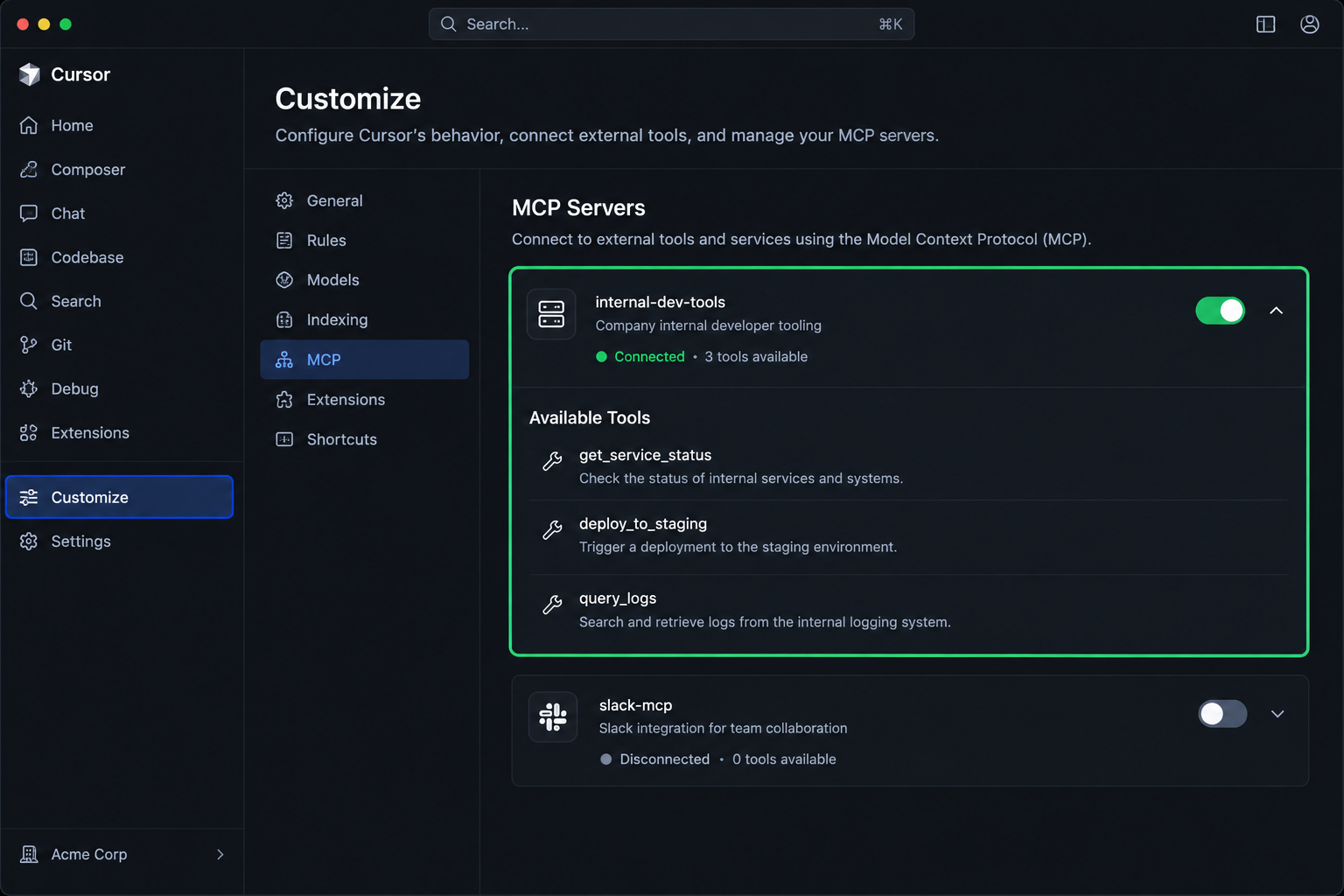
For example, after saving the config, a new server should appear enabled and show three tools. If the list is empty, treat it as a connection problem. Use the MCP server toggle to switch the server off and on without removing it. Restart Cursor after editing local files.
- Server is listed.
- Toggle is enabled.
- Tools appear.
- No error badge after restart.
How to Use MCP Tools in Cursor Chat
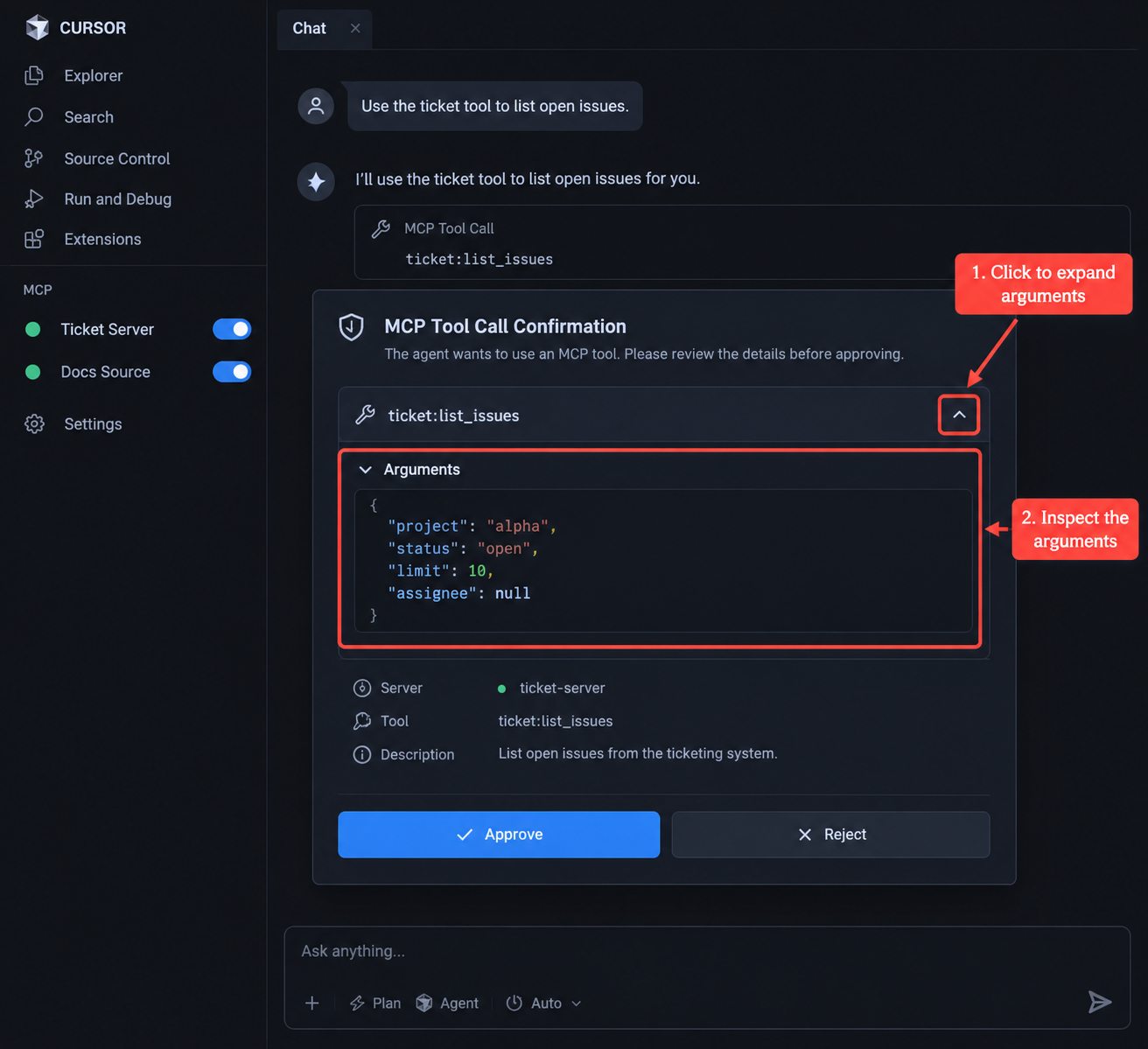
To use MCP in Cursor, ask in chat. The agent picks relevant MCP tools from Available Tools, including in Plan Mode. You can name one directly. Approve calls carefully.
- “Use the ticket tool to list open issues.”
- “Ask the docs source for rate limits.”
Approve or Reject MCP Tool Calls
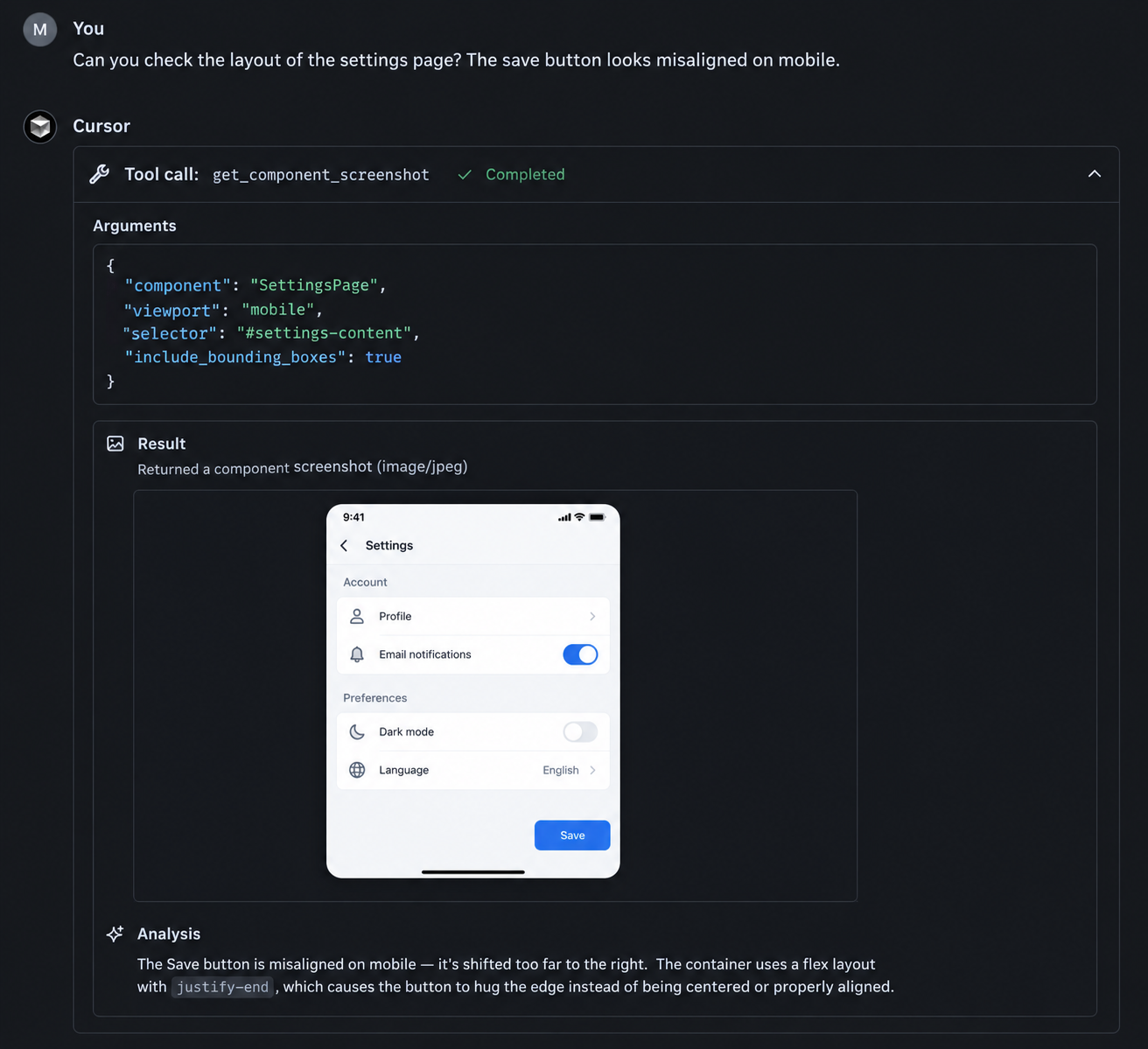
By default, Cursor requests tool approval before executing MCP tools. When the tool confirmation prompt appears, click the arrow beside the tool name and inspect the arguments. For example, if the agent calls a delete_record tool, expanding the arguments may reveal the wrong ID, so you reject the call. This prompt is your last chance to stop an unwanted external action.
- Check tools that write, delete, or send data.
- Verify IDs, paths, URLs, and query filters.
- Reject vague or unusually broad arguments.
- Prefer narrow, explicit arguments over broad ones.
Read Tool Responses and Images in Chat
Each tool response appears in chat as an expandable card. You can review the arguments and the returned data before trusting the result. This view makes it easier to confirm that the tool read the correct file or selected the right UI element. A design server can return a component screenshot. Cursor then describes the layout bug it sees. Servers send image content as base64 strings. If the selected model supports images, Cursor attaches them for analysis. For server authors, return an image block with image/jpeg or another MIME type.
return {
  content: [
    {
      type: "image",
      mimeType: "image/jpeg",
      data: base64Data
    }
  ]
};
When MCP in Cursor fails, triage in order. Confirm the server toggle is on in Customize. Open the Output panel, select MCP Logs, then re-check the config for invalid JSON, missing commands, or absent environment variables. Restart Cursor after local edits.
Read MCP Logs to Find Connection and Auth Errors
Read the MCP server logs first.
- Open the Output panel with Cmd+Shift+U on Mac or Ctrl+Shift+U on Windows/Linux.
- Select MCP Logs.
- Check whether the failure is connection, authentication, or crash.
Common causes:
- Command missing from the system path.
- Missing environment variable.
- Invalid JSON in mcp.json.
- Wrong OAuth redirect URL.
Connection lines show transport or spawn problems. Authentication lines mention tokens. Crash lines show abrupt exits.
For example, “command not found” for npx means install Node.js or use a full command path.
What to Do When an MCP Server Crashes, Times Out or Needs an Update
Cursor isolates a server crash or timeout. Other servers keep running. The failed call is marked as failed in chat, and you can retry it once the cause is fixed.
For an npm-based server that keeps loading an outdated cached package, clear the cache and reinstall:
- Remove the server in Customize.
- Run
npm cache clean --forcein a terminal. - Add the server again.
This forces Cursor to fetch a fresh copy. For a custom server, update its local files, then restart Cursor.
When an MCP Server's Web Requests Get Blocked or Rate-Limited
If a web-fetch MCP server sends many requests from your machine’s IP, the target site may answer HTTP 429 or HTTP 403. That means rate limiting or blocking. If it respects proxy environment variables, configure the proxy in mcp.json and keep credentials in your environment.
{
  "mcpServers": {
    "web-fetch": {
      "type": "stdio",
      "command": "npx",
      "args": [
        "-y",
        "@modelcontextprotocol/server-fetch"
      ],
      "env": {
        "HTTP_PROXY": "${env:PROXY_URL}"
      }
    }
  }
}
Datacenter IPs are easy to deploy but easier to classify. A mobile proxy uses a 4G/5G carrier IP, which can look like ordinary traffic. Proxy support depends on the MCP server.
${env:PROXY_URL} pattern. See mobile proxies for AI agents.Security Best Practices for MCP Servers in Cursor
MCP servers can access external services and run commands on your behalf. In Cursor, installation is a trust decision.
- Install only from trusted developers and repositories.
- Review requested permissions before enabling the server.
- Use API keys with least privilege and narrow scopes.
- Perform a code audit for custom or community servers.
- Keep secrets in environment variables. Prefer local stdio for sensitive work. Isolate high risk servers.
For example, if a community server asks for a full access token, create a read only token and inspect its source first.
Sharing MCP Servers with Your Team in Cursor
- Team admins configure shared MCP servers in Dashboard > Plugins & MCPs and link them to the team marketplace. This makes them visible in Customize, but it does not install or enable them for everyone.
- Enterprise admins use Team Settings > MCP Configuration and the MCP Allowlist to approve commands or URL patterns and restrict tools. Allowlisting approves a configuration, not installation.
For example, a lead can publish an internal docs server so new hires find it in Customize on day one.
FAQ: MCP in Cursor
How to add MCP to Cursor?
Use Marketplace one-click install or add the server definition to mcp.json.
How to connect MCP server to Cursor?
Save the config, enable the server, and verify tools in the Customize page.
What is the fastest way to add MCP to Cursor?
The fastest way to add MCP to Cursor is via an official Cursor Marketplace plugin. Open Customize, click Add to Cursor, and sign in. For custom servers, add it to mcp.json instead.
Where is the mcp.json file in Cursor?
Cursor reads project-specific servers from .cursor/mcp.json inside the repository. Use that file for repo-linked tools. It reads global servers from ~/.cursor/mcp.json in your home directory for personal utilities available everywhere.
Can I temporarily disable an MCP server in Cursor?
Yes. Open Customize from the sidebar and toggle the MCP server off. Disabled servers do not load or appear in chat. You can re-enable them later without reconfiguring. Use this to pause a tool while debugging connection or permission problems.
How do I debug an MCP server that won't connect to Cursor?
If you cannot connect MCP server to Cursor, open the Output panel. Use Cmd+Shift+U or Ctrl+Shift+U, select MCP Logs, and check connection, authentication, or crash errors. Then validate mcp.json, confirm the command path exists, and verify required environment variables.
Can I use MCP servers in Cursor with sensitive data?
Yes, with precautions. Store secrets in environment variables, not in config files. Run sensitive servers locally over stdio, grant API keys the narrowest permissions, review community code, and isolate anything that can execute commands.
Conclusion: Start with One Server, Then Expand
Pick one tool you currently copy-paste from, such as read-only docs or tickets. Add that server through one-click install or mcp.json, verify it under Customize, keep secrets in environment variables, and check MCP Logs on failure. Carefully approve tool calls before adding write-capable servers to your MCP in Cursor setup.