- All proxies are mobile, clean, anonymous, and highly trustworthy.
- Mobile proxies can be used in any software; below you'll find the most popular ones.













Proxy Server Settings: What to Use and How to Set Them Up
- Vladimir Khan
- 5 minutes
What Are Proxy Server Settings and Which Ones Do You Actually Need?
Proxy server settings tell your device or browser to use an intermediary server. It bridges your device and the internet. If you ask what proxy settings should I use, enter host, port, protocol, and credentials. Steps vary by operating system and browser.
A freelancer receiving proxy.example.com:8080, HTTP, user/pass can map each part below.
Setting | What it means | Where you get it | Example format |
|---|---|---|---|
Host | Host/IP address | Provider | proxy.example.com |
Port | Endpoint number | Provider | 8080 |
Protocol | HTTP or SOCKS5 | Provider | HTTP |
Username | Login | Provider | user123 |
Password | Secret | Provider | pass123 |
Bypass list | Direct addresses | OS | localhost |
How to Choose the Right Proxy Settings
What proxy settings should I use? Use HTTP proxy for browsers. Choose SOCKS5 only when apps can send credentials.
- Chrome: HTTP login.
- Desktop tool: SOCKS5 with authentication.
- Use manual unless PAC file is supplied.
HTTP or SOCKS5: Which Protocol Fits Your Case?
For proxy server settings, HTTP trades flexibility for broad browser support. If a SOCKS5 host in the Windows proxy field gives no connection, use HTTP. Chrome and Firefox cannot send SOCKS5 username/password.
Protocol | Best for | Limitation |
|---|---|---|
HTTP | Browsers, Windows field | Less general |
SOCKS5 | Non-browser tools | Browser credential limits |
Authentication: Login and Password in Your Settings
Many proxy settings include a username and password. In Chrome, enter the HTTP host and port, then type the credentials into the authentication prompt, never sharing them in public places. OnlineProxy mobile proxies use this login method only. They run on 4G/5G carrier IPs with HTTP and SOCKS5. For that protocol, use Proxifier or an anti-detect browser.
Manual, Automatic (PAC) or Auto-Detect Setup?
- Manual proxy setup: enter host and port. Use it for a home proxy configuration.
- PAC file: a script URL chooses routes. Use it when an office laptop receives a Use setup script URL.
- Auto Proxy Discovery: the network configures itself. Use it only on managed networks.
The Bypass List: Which Addresses Should Skip the Proxy?
The bypass list keeps localhost and local network addresses direct. For example, a developer excludes loopback so test sites open.
Security Check Before You Enter Any Proxy Settings
Before changing your proxy server settings, treat every unknown endpoint as a possible malicious proxy.
Before you save
- Use details only from a trusted source.
- Avoid free proxy lists when encryption or ownership is unclear.
- Know how to switch it off if something looks wrong.
- Remove any entry that produces strange pages.
For example, if a random forum endpoint causes ads and redirects, delete it.
How to Set Proxy Server Settings on Windows
Here is how to set proxy settings in Windows. The built-in field accepts HTTP only.
- Press Windows + I and open Settings.
- Go to Network & Internet > Proxy.
- Under Manual proxy setup, turn on Use a proxy server.
- Enter
proxy.example.comand8080. - Add exceptions if needed, then click Save.
- For a PAC file URL, select Use setup script instead.
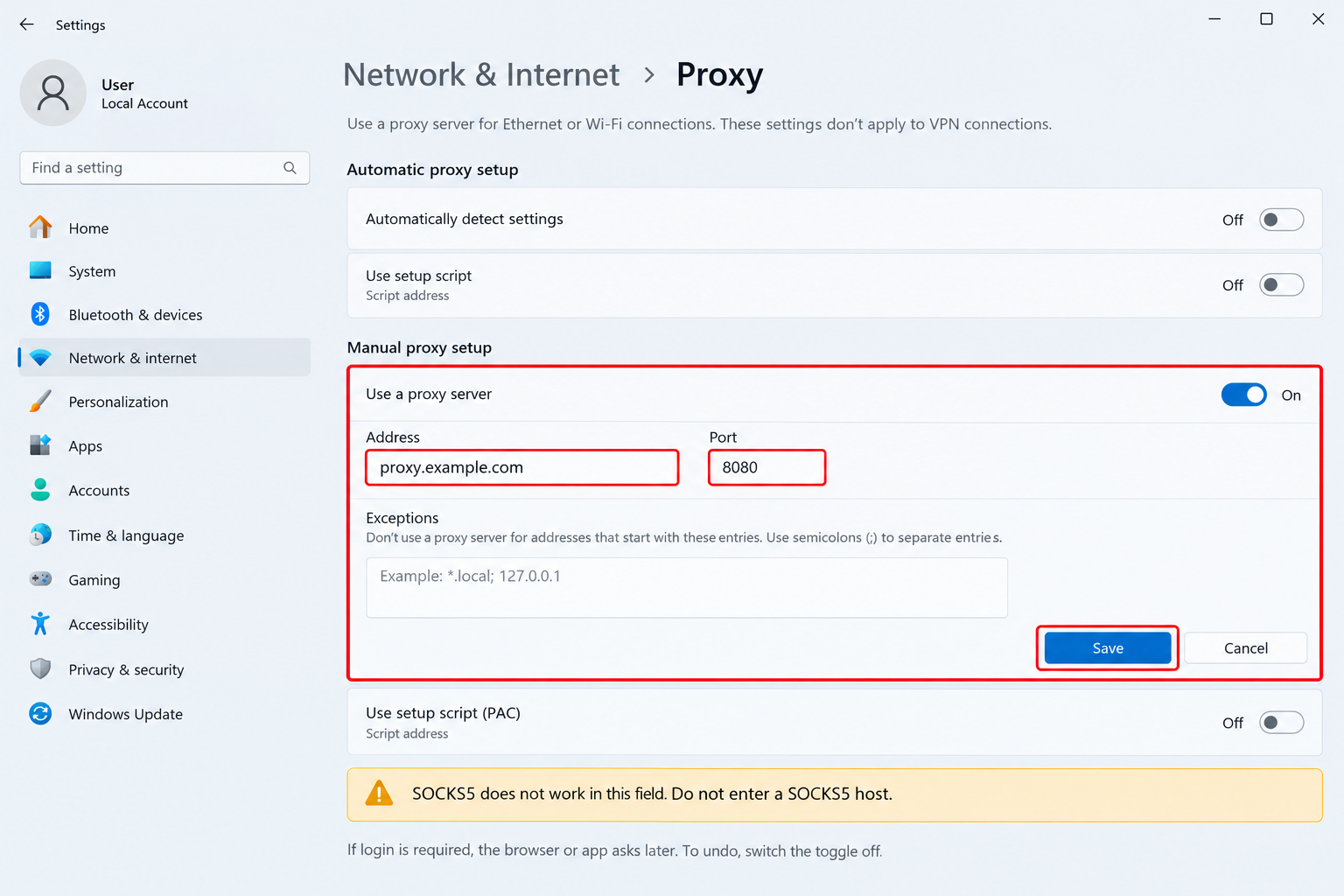
If login is required, the browser or app asks later. To undo, switch the toggle off.
How to Set Proxy Server Settings on Mac
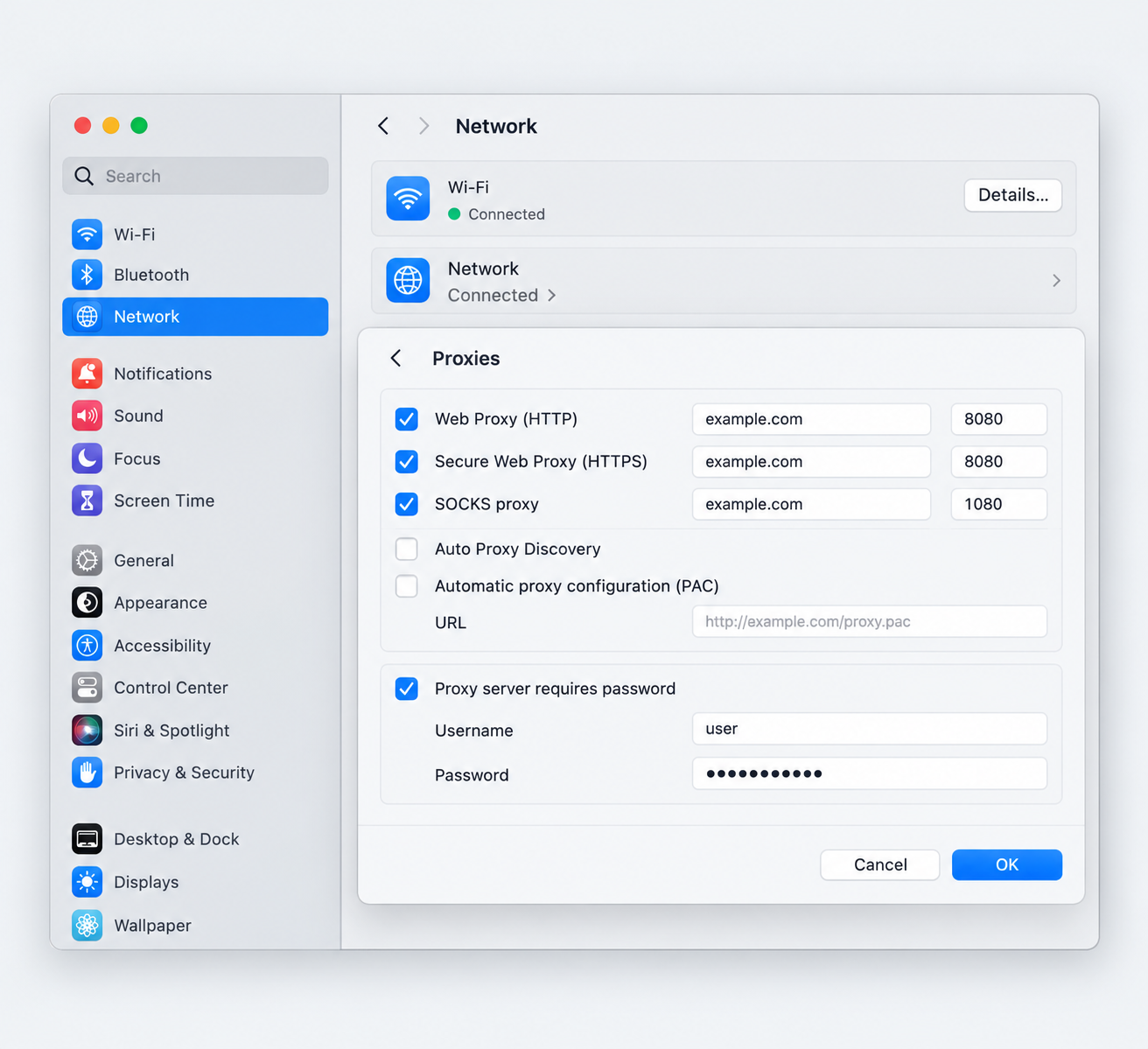
To change proxy server settings on macOS, open System Settings > Network, select Wi-Fi or Ethernet, click Details…, then open Proxies. These values apply to apps that use the system route.
- Select your active connection.
- Tick Web Proxy (HTTP), Secure Web Proxy (HTTPS), SOCKS proxy, Auto Proxy Discovery, or an automatic PAC URL.
- Enter the host and port, such as example.com and 8080.
- Tick Proxy server requires password if login is needed.
- Type the credentials.
- Click OK.
- Test a site or IP checker.
On Ventura and later, this proxy configuration is applied by OK alone, while older System Preferences use Apply. Safari and Chrome use these values, but Chrome cannot send SOCKS5 credentials.
Proxy Settings in Chrome and Firefox
Chrome and Firefox usually follow system proxy settings. For example, a single Windows change can route both browsers automatically.
Google Chrome
Chrome uses your system proxy server settings. To open the panel:
- Open Settings.
- Choose System.
- Click Open your computer's proxy settings.
- Enter the HTTP details, then confirm in the sign-in prompt.
The --proxy-server flag takes no credentials. It is ignored if Chrome already runs unless you add --user-data-dir or quit first. Proxy-switcher extensions cannot add SOCKS5 authentication.
Mozilla Firefox
Firefox defaults to Use system proxy settings. To isolate this browser, configure it manually.
- Open the General pane.
- Open Network Settings and its dialog.
- Choose manual proxy configuration.
- Enter host and port. This browser cannot send SOCKS5 authentication there.
How to Check That Your Proxy Settings Work
- Open the IP geolocation checker and note your home ISP address and location.
- Apply the new proxy settings, then restart your browser.
- Reload the IP checker. Confirm a new address and location, normal loading, and working sites.
If the IP address does not change, the app may ignore system settings.
Troubleshooting Proxy Server Settings
A hurried typo in proxy server settings can cause timeouts, login loops, or unchanged IP.
Symptom | Likely cause | Fix |
|---|---|---|
Timeout | Wrong host, port, protocol | Verify them. |
Endless login or 407 proxy authentication required | Bad credentials | Retype. A Chrome password typo can block pages. |
SOCKS5 host in Windows field | HTTP box | Use HTTP or a SOCKS5 auth app. |
Chrome flag ignored | Still running | Quit the browser or use separate profile. |
IP unchanged | Not saved or ignored | Save and restart app. |
Test with a free online proxy checker and reset proxy settings by switching it off or clearing fields.
FAQ: Proxy Server Settings
What proxy settings should I use?
Host, port, protocol, and credentials. Use HTTP for system settings and Chrome.
How do I properly set proxy settings?
Enter them in your OS or browser, then verify.
Can I use SOCKS5 in Windows settings?
No. The Windows field is HTTP-only. Use HTTP or a tool supporting SOCKS5 authentication.
Do I need to restart the browser, and how do I turn the proxy off?
Usually restart after saving. Switch the proxy toggle off.
Conclusion: A Quick Proxy Settings Checklist
Before saving your proxy server settings, confirm:
- Host, port, and credentials copied.
- Protocol matches tool support.
- Values entered correctly.
- IP verification passed.
Keep the original values noted for quick rollback.